
URL: https://api.gemina.co/api/v1/mcp/

1. Ask Grok Bot: "Add the Gemina MCP server at https://api.gemina.co/api/v1/mcp/"
2. Open the Connect card and sign in to Gemina when prompted.
3. Check that Gemina is Installed under Connect apps.
4. Type @, select Gemina, and give it your first task.
If a team policy blocks the server, ask your admin to allow it.Gemina is an AI that reads invoices and other documents.
Let your AI read your documents.
Connect ChatGPT, Claude or your own AI agent to Gemina.
It can read invoices, find files and total amounts, with sources.
Works in
 ChatGPT
 Claude
 Grok Bot
 n8n
Connect
Two ways in. One server.
Sign in from the app you already use, or paste an API key into a config file. Every snippet points at the same endpoint.
Hosted endpoint
https://api.gemina.co/api/v1/mcp/Sign in from your app (OAuth)
RecommendedAdd the server, then sign in when your app asks. Your app keeps its connection credential, so there is no API key to copy.
URL: https://api.gemina.co/api/v1/mcp/

1. Open chatgpt.com/plugins on the web.
2. Select + -> Add custom MCP server.
3. Name it "Gemina" and paste the URL above under Server URL.
4. Choose OAuth authentication and dynamic client registration (DCR) if asked.
5. Review the warning, then select Create as a plugin.
6. Install the plugin and sign in to Gemina when prompted.
7. In a conversation, type @ and select Gemina before your first task.New to Gemina? Create your account first.
Connect Gemina in Claude- Connect Gemina from its listing in Claude.
- Sign in to your Gemina account.
- Approve the connection.
On Team or Enterprise, an owner may need to enable Gemina for your organization.
Use in Claude Code
- Sign in to Claude Code with the same Claude account you used in your browser.
- Restart Claude Code. Run /mcp to check that Gemina appears.
CLI sessions using an API key or another provider need the manual setup below.
Other ways to connect
Same flow in claude.ai and Claude Desktop. No config file, no key.
Leave Advanced settings empty — Gemina registers the client for you.
On Team and Enterprise an Owner adds it once under Organization settings → Connectors.
Everyone else just clicks Connect.
URL: https://api.gemina.co/api/v1/mcp/

1. Customize → Connectors
2. Add → Add custom connector
3. Paste the URL
4. Sign in
mcp_servers:
  gemina:
    url: "https://api.gemina.co/api/v1/mcp/"
auth: oauthOther AI apps and agents
New to Gemina? Create your account first.
Connect Gemina in Claude- Connect Gemina from its listing in Claude.
- Sign in to your Gemina account.
- Approve the connection.
- Sign in to Claude Code with the same Claude account you used in your browser.
- Restart Claude Code. Run /mcp to check that Gemina appears.
On Team or Enterprise, an owner may need to enable Gemina for your organization.
CLI sessions using an API key or another provider need the manual setup below.
Other ways to connect
Run the command, then /mcp inside Claude Code to sign in.
Claude Code reads the 401 challenge and opens your browser.
From v2.1.186 you can sign in from the shell instead: claude mcp login gemina.
Over SSH, add --no-browser for a paste-back URL.
claude mcp add --transport http gemina https://api.gemina.co/api/v1/mcp/
# then run /mcp and sign in
codex mcp add gemina --url https://api.gemina.co/api/v1/mcp/
codex mcp login gemina
{
  "mcpServers": {
    "gemina": {
      "url": "https://api.gemina.co/api/v1/mcp/"
    }
  }
}
openclaw mcp set gemina '{"url":"https://api.gemina.co/api/v1/mcp/","transport":"streamable-http","auth":"oauth"}'
openclaw mcp login gemina
gemini mcp add --transport http gemina https://api.gemina.co/api/v1/mcp/
{
  "servers": {
    "gemina": {
      "type": "http",
      "url": "https://api.gemina.co/api/v1/mcp/"
    }
  }
}
grok mcp add --transport http gemina https://api.gemina.co/api/v1/mcp/
{
  "mcpServers": {
    "gemina": {
      "serverUrl": "https://api.gemina.co/api/v1/mcp/"
    }
  }
}URL: https://api.gemina.co/api/v1/mcp/
1. Add the MCP Client Tool node (under an AI Agent), or MCP Client for a plain step
2. MCP Endpoint URL: paste the URL above
3. Server Transport: HTTP Streamable
4. Authentication: MCP OAuth2
5. Credentials -> create an "MCP OAuth2 API" credential; leave Dynamic Client Registration on and Resource URL empty
6. Click sign in, approve Gemina in the browser, then set Tools to Include
URL: https://api.gemina.co/api/v1/mcp/

1. In your agent: Tools -> Add a tool -> New tool -> Model Context Protocol
2. Server name: Gemina
3. Server URL: paste the URL above
4. Authentication: OAuth 2.0 -> Type: Dynamic discovery
5. Create -> Create a new connection -> Add to agent
URL: https://api.gemina.co/api/v1/mcp/

1. Apps -> + Add connection -> MCP Client -> Add connection
2. Server URL: paste the URL above
3. Transport: Streamable HTTP
4. OAuth: Yes (leave Bearer Token blank)
5. Continue, then sign in to Gemina in the tab that opens
npx @modelcontextprotocol/inspector \
  --server-url https://api.gemina.co/api/v1/mcp/ \
  --transport http

# Open the printed URL (it carries a one-time session token), then click Connect.
# Gemina answers 401, the Inspector discovers the authorization server,
# registers itself and opens your browser to sign in.Paste an API key
Use an API key when you prefer a key-based connection or your app does not support sign-in. The same server and tools are available.
URL: https://api.gemina.co/api/v1/mcp/

1. Ask Grok Bot: "Add the Gemina MCP server at https://api.gemina.co/api/v1/mcp/"
2. Ask it to configure the X-API-Key header, requesting your API key through a masked secret request.
   Enter your key only in the secure masked request, never in ordinary chat.
3. Check that Gemina is Installed under Connect apps.
4. Type @, select Gemina, and give it your first task.
If a team policy blocks the server, ask your admin to allow it.{
"mcpServers": {
"gemina": {
"command": "npx",
"args": [
"-y",
"mcp-remote",
"https://api.gemina.co/api/v1/mcp/",
"--header",
"X-API-Key:${GEMINA_API_KEY}"
],
"env": {
"GEMINA_API_KEY": "<paste-your-key-here>"
}
}
}
}mcp_servers:
gemina:
url: "https://api.gemina.co/api/v1/mcp/"
headers:
X-API-Key: "<paste-your-key-here>"Other AI apps and agents
claude mcp add --transport http gemina https://api.gemina.co/api/v1/mcp/ \
--header "X-API-Key: <paste-your-key-here>"[mcp_servers.gemina]
url = "https://api.gemina.co/api/v1/mcp/"
http_headers = { "X-API-Key" = "<paste-your-key-here>" }{
"mcpServers": {
"gemina": {
"url": "https://api.gemina.co/api/v1/mcp/",
"headers": {
"X-API-Key": "<paste-your-key-here>"
}
}
}
}
{
  "mcpServers": {
    "gemina": {
      "url": "https://api.gemina.co/api/v1/mcp/",
      "headers": {
        "X-API-Key": "<paste-your-key-here>"
      }
    }
  }
}openclaw mcp set gemina '{"url":"https://api.gemina.co/api/v1/mcp/","transport":"streamable-http","headers":{"X-API-Key":"<paste-your-key-here>"}}'gemini mcp add --transport http \
--header "X-API-Key: <paste-your-key-here>" \
gemina https://api.gemina.co/api/v1/mcp/{
"servers": {
"gemina": {
"type": "http",
"url": "https://api.gemina.co/api/v1/mcp/",
"headers": {
"X-API-Key": "<paste-your-key-here>"
}
}
}
}grok mcp add --transport http gemina https://api.gemina.co/api/v1/mcp/ \
--header "X-API-Key: <paste-your-key-here>"{
"mcpServers": {
"gemina": {
"serverUrl": "https://api.gemina.co/api/v1/mcp/",
"headers": {
"X-API-Key": "<paste-your-key-here>"
}
}
}
}
{
  "mcpServers": {
    "gemina": {
      "type": "streamableHttp",
      "url": "https://api.gemina.co/api/v1/mcp/",
      "headers": {
        "X-API-Key": "<paste-your-key-here>"
      }
    }
  }
}URL: https://api.gemina.co/api/v1/mcp/
1. Add the MCP Client Tool node (under an AI Agent), or MCP Client for a plain step
2. MCP Endpoint URL: paste the URL above
3. Server Transport: HTTP Streamable
4. Authentication: Header Auth -> Name: X-API-Key, Value: <paste-your-key-here>
5. Set Tools to Include (All, or a subset)URL: https://api.gemina.co/api/v1/mcp/
1. In your agent: Tools -> Add a tool -> New tool -> Model Context Protocol
2. Server name: Gemina
3. Server URL: paste the URL above
4. Authentication: API key -> Type: Header -> Name: X-API-Key
5. Create -> Create a new connection (paste <paste-your-key-here>) -> Add to agentURL: https://api.gemina.co/api/v1/mcp/
1. Apps -> + Add connection -> MCP Client -> Add connection
2. Server URL: paste the URL above
3. Transport: Streamable HTTP
4. OAuth: No
5. Bearer Token: <paste-your-key-here>curl https://api.openai.com/v1/responses \
-H "Content-Type: application/json" \
-H "Authorization: Bearer $OPENAI_API_KEY" \
-d '{
"model": "gpt-5.6",
"input": "Extract the totals from the invoice I uploaded.",
"tools": [{
"type": "mcp",
"server_label": "gemina",
"server_url": "https://api.gemina.co/api/v1/mcp/",
"headers": { "X-API-Key": "<paste-your-key-here>" },
"require_approval": "never"
}]
}'npx @modelcontextprotocol/inspector \
--server-url https://api.gemina.co/api/v1/mcp/ \
--transport http \
--header "X-API-Key: <paste-your-key-here>"
# Open the printed URL (it carries a one-time session token), then click Connect.
curl -X POST https://api.gemina.co/api/v1/mcp/ \
  -H "Content-Type: application/json" \
  -H "Accept: application/json, text/event-stream" \
  -H "X-API-Key: <paste-your-key-here>" \
-d '{"jsonrpc":"2.0","id":1,"method":"initialize","params":{"protocolVersion":"2025-03-26","capabilities":{},"clientInfo":{"name":"curl","version":"1"}}}'The tools
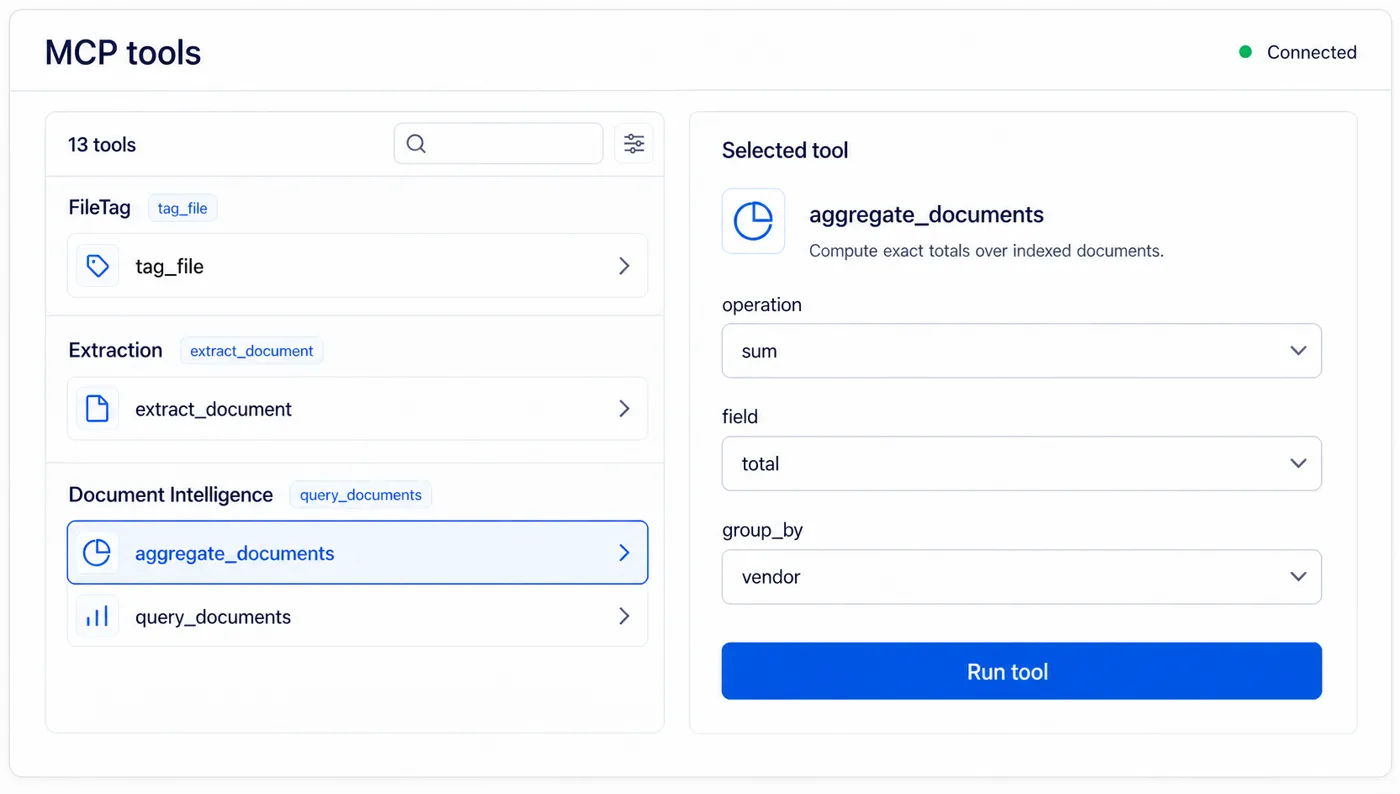
16 tools, in three groups.
Names and descriptions come straight from the published manifest, so this page and the server never disagree.
FileTag
4 toolsTag, rename, and enrich any PDF or image. Free tier, no credit card.
files_create_uploadReserve a pre-signed PUT slot for a file the agent holds locally, then follow the returned next_tool_call recipe — tag_file by default, extract_document when purpose='extract'. One slot type: any slot works with either tool. Bytes go straight from the agent host to storage and never traverse the LLM context. The host needs access to attachment bytes and an HTTP PUT capability. If it cannot transfer attachments, use a supplied sample URL or the private upload in the Gemina setup guide.tag_fileRun the FileTag pipeline against a previously uploaded slot. Returns extracted metadata, a suggested filename, six filename patterns, and a short-lived signed URL to an enriched copy with the metadata embedded in document properties or EXIF.tag_urlFetch a public HTTPS URL server-side under strict SSRF guards and run the FileTag pipeline on it. Same result shape as tag_file; the bytes never traverse the LLM context.get_filetag_resultRead a completed FileTag result and renew its download link. Uses saved fields and consumes no extraction or FileTag credits. The document must belong to your connection and still be retained.
Extraction
9 toolsTyped extraction over invoices, Hebrew documents, line items, raw OCR, and custom templates.
extract_documentRun typed extraction on an uploaded slot from files_create_upload. Choose extraction_types: invoice_headers, invoice_line_items, custom_template, ocr (runs only on the praetorian model), or the legacy document_details_hebrew / document_line_items_hebrew (praetorian only, not recommended). Model choice is a recommendation, not a rule: velox for headers, invictus with thinking for line items. Asynchronous — returns the result directly or a correlationId to poll. Thinking, evaluation, correction, and coordinate toggles mirror the REST API.get_extraction_resultPoll for the result of an asynchronous extract_document call using its correlationId. Returns the completed extraction, or an in-process status to poll again.list_extractionsList past extractions, newest first. Filter by external_id, end_user_id, or an ISO date window, and paginate with skip and limit.get_extractionFetch one extraction by id, including the full extracted data.get_documentFetch one document by id, including all of its extractions.add_document_extractionsRun more extraction types on a document Gemina already stores — no re-upload. Pass the document id (from tag_file, extract_document, or get_document) and the extraction_types; paid per extraction like an upload. Two modes: leave wait at its default to hold the call and read the values in the same turn (poll pollCorrelationId with get_extraction_result), or pass wait=false to return at once when you only need the document filed for later search — the extraction still runs to completion and its outcome stays visible in get_document / list_extractions. Both modes cost the same. Every structured type (not plain OCR) is also submitted for indexing, so the document becomes answerable by query_documents and aggregate_documents; indexing is opt-in, plan-gated and best-effort. A pending upload slot (gfile_…) is not a document id.submit_extraction_feedbackSubmit verified or corrected field values for a completed extraction and get back a per-field comparison summary. Each extraction accepts feedback once.extract_urlRead a PDF or image at a public URL through the normal extraction pipeline. Uses extraction credits; does not run FileTag first. For a guided sample URL, Gemina supplies its prepared fields and collection. For another URL, provide extraction_types and template_id when using custom_template. If still in_process, poll get_extraction_result with the returned correlation id. Never claim a search result until extraction and indexing are ready.resume_tutorial_requestExplicitly recover an interrupted guided request with its original connection and original file. Reuses saved work; never dispatches from a progress read.
Document Intelligence
3 toolsAsk questions and run spend analytics across the tenant's indexed documents — search and compute exact totals, no re-upload.
query_documentsAsk across your whole indexed collection, no re-upload. Search in structured mode (exact field filters), semantic mode (natural-language similarity over extracted fields and FileTag metadata, not raw body text), or hybrid mode (keyword and semantic fused with Reciprocal Rank Fusion, the best default). Returns matched documents with their extracted fields; semantic and hybrid modes also return relevance scores.aggregate_documentsSpend analytics with no export: compute sums, averages, minimums, maximums, and counts over your indexed documents, grouped by vendor, currency, document type, expense type, payment method, end user, month, or year — e.g. total spent per vendor last quarter. Counts are per document (re-uploads collapse on a full identity match). Money metrics are always split per currency unless a currency filter is given, so totals are never mixed.index_documentManually (re)index one document into the searchable index — after corrections, or to backfill a document processed before indexing was enabled. Documents are otherwise submitted for indexing automatically for FileTag and structured extractions once the tenant enables it — plain OCR is not indexed, and a document can be skipped (e.g. no extractable fields or no indexing credits).
Discovery
Look before you sign up.
A read-only mount answers tools/list with no credentials, so registries and clients can see what Gemina offers before anyone creates an account.
curl -X POST https://api.gemina.co/api/v1/mcp/public/ \
  -H "Content-Type: application/json" \
  -d '{"jsonrpc":"2.0","id":1,
       "method":"tools/list","params":{}}'
Authenticated endpoint
Running a tool goes to https://api.gemina.co/api/v1/mcp/. Sign in from Grok Bot, ChatGPT, Claude, Hermes Agent and other supported apps, or send an API key as a bearer token or X-API-Key.
Machine-readable manifest
/.well-known/mcp.json describes the server, its auth, its file limits and every tool.
Works with any MCP host
Start with Grok Bot, ChatGPT, Claude, Hermes Agent, or choose another AI app under Other AI apps and agents. Choose My own AI agent for an agent you built.
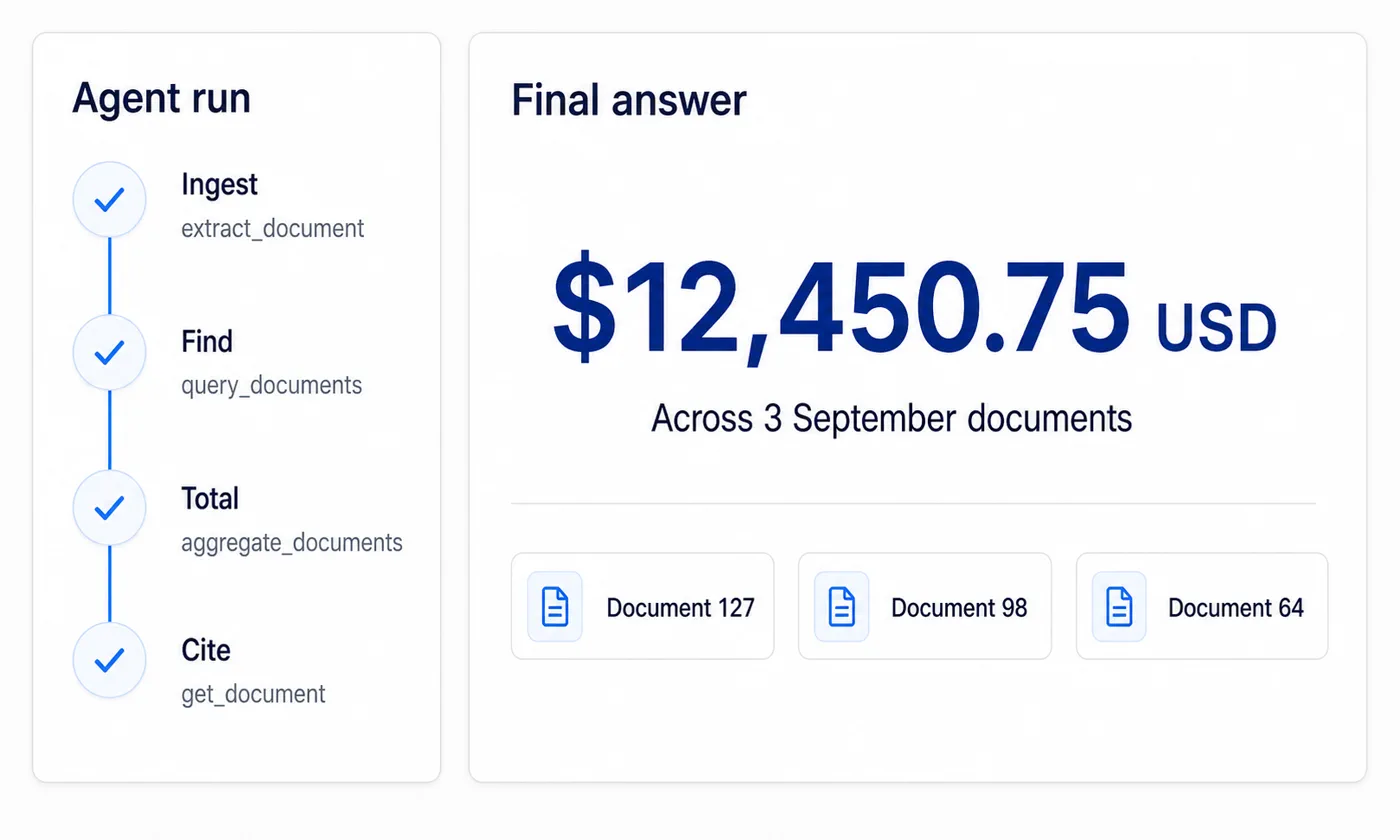
A worked example
Documents in. A cited answer out.
Four steps an agent can run on its own.
- 1
Ingest
Reserve an upload slot, put the bytes there, and run typed extraction. The document never passes through the model context. To add more extraction types to it later, add_document_extractions re-extracts the stored document — no re-upload.
files_create_upload, extract_document - 2
Find
Search the tenant’s indexed collection by field, by meaning, or both at once.
query_documents - 3
Total
Compute sums and counts in the database, grouped by vendor, currency, month, or type.
aggregate_documents - 4
Cite
Fetch the documents behind the numbers so the agent can show its working.
get_document, get_extraction
Worth knowing
Chat is not one of the tools.
Agents get search, aggregation and indexing over MCP. Chat is not on that list. It runs over REST and the SDKs instead. A conversation carries state from one turn to the next, and an MCP tool call is stateless.
So an agent that wants a conversational answer composes one itself, from query_documents and aggregate_documents. That is usually what you want anyway. The agent keeps control of the reasoning.
Connect your AI to Gemina.
1,500 free FileTag calls a month. No credit card.